
Windows Recovery Environment (WinRE) is a lightweight recovery operating system built into Windows that allows a device to be repaired, restored or reinstalled when the main Windows installation cannot start or function correctly.
Rather than relying on the installed copy of Windows, WinRE provides an independent environment containing Windows recovery tools such as Startup Repair, Reset this PC (Push Button Reset), System Restore, Command Prompt and advanced troubleshooting utilities. This allows administrators to diagnose problems, repair boot failures and recover systems without requiring external installation media.
Unlike the full Windows operating system, WinRE is packaged as a Windows Imaging (WIM) file called winre.wim and stored on a dedicated Recovery partition. When recovery is required, Windows loads this image into memory and boots into it instead of the installed operating system. Because the primary Windows installation remains offline, WinRE can repair files, rebuild boot configuration and perform recovery operations that would be impossible while Windows is running.
For most users, WinRE is simply the blue recovery screen that appears when Windows encounters a serious problem. For deployment engineers and IT administrators, however, it is a critical part of the Windows lifecycle. Features such as Reset this PC, Startup Repair, Safe Mode and Automatic Recovery all depend on a healthy Windows Recovery Environment. If WinRE is missing, disabled or incorrectly serviced, these recovery features may no longer function as expected.
When Does Windows Load WinRE?
Windows automatically starts WinRE whenever the normal operating system cannot continue, or when recovery is requested by a user or administrator.
Common scenarios include:
- Windows fails to boot after multiple consecutive startup attempts
- Reset this PC is launched from the Settings app
- Shift + Restart is used from the Start menu
- Startup Repair is triggered automatically
- Recovery is initiated through enterprise management platforms such as Microsoft Intune
- An administrator manually boots into the recovery environment for troubleshooting
Once WinRE has loaded, Windows presents the familiar Choose an option menu, providing access to recovery and diagnostic tools without starting the installed operating system.
Why Is WinRE Separate from Windows?
One of WinRE’s greatest strengths is its isolation from the operating system it is designed to repair.
Instead of running from the Windows partition, WinRE boots from its own winre.wim image stored on the Recovery partition. This image is loaded into memory, allowing the installed operating system to remain offline while recovery tasks are performed.
This architecture enables WinRE to:
- Repair boot problems before Windows starts.
- Replace protected system files that would otherwise be locked.
- Repair Boot Configuration Data (BCD).
- Restore Windows after failed updates.
- Perform Push Button Reset (PBR).
- Access BitLocker-protected volumes after authentication.
Running independently of the installed operating system makes WinRE significantly more resilient than recovery tools that depend on Windows itself. Even if the Windows partition is damaged or unbootable, the recovery environment can often still start and restore the system.
How Windows Starts WinRE
When Windows needs to enter the Windows Recovery Environment (WinRE), it doesn’t search every drive looking for winre.wim. Instead, it follows a predefined recovery configuration that tells Windows Boot Manager exactly where the recovery environment is stored.
This process is the same whether recovery is triggered automatically after repeated boot failures or manually through Reset this PC, Shift + Restart, or other recovery options.
Step 1: Windows Boot Manager Detects Recovery Mode
Recovery begins before the main operating system loads.
If Windows detects multiple failed boot attempts, or a recovery operation has been requested, Windows Boot Manager (bootmgr) determines that the system should start WinRE instead of continuing with a normal boot.
At this stage, Windows hasn’t loaded the operating system, it simply knows that recovery is required.
Step 2: Windows Reads the Recovery Configuration
Rather than scanning every partition for winre.wim, Windows consults its recovery configuration, which is managed by the Windows Recovery Agent (ReAgent).
This configuration records:
- Whether WinRE is enabled
- The location of the Recovery partition
- The location of winre.wim
- Recovery status information
Administrators can view this configuration with:
reagentc /infoA typical system returns:
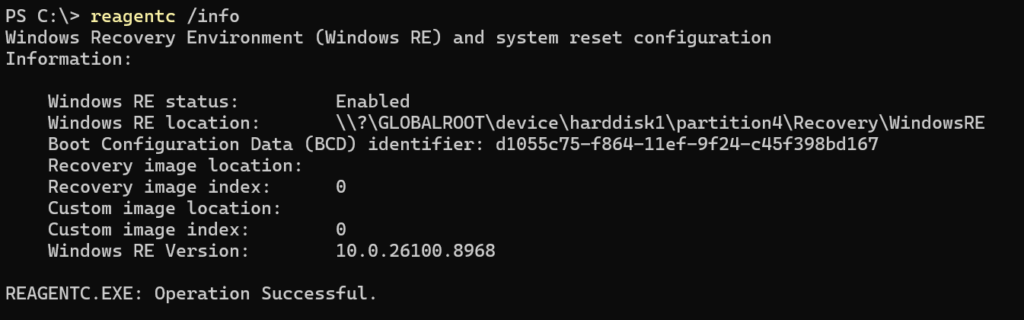
Windows RE status: Enabled
Where is winre.wim Located?
\\?\GLOBALROOT\device\harddisk0\partition4\Recovery\WindowsRE
If WinRE has been disabled or Windows can no longer locate the recovery image, many recovery features including Reset this PC and Automatic Startup Repair may fail to launch.
reagentc quick Command Reference
reagentc /info     # Check if WinRE is enabled and find winre.wim path
reagentc /disable  # De-registers WinRE (moves winre.wim to C:\Windows\System32\Recovery)
reagentc /enable   # Re-enables WinRE and moves winre.wim to the Recovery partition
Step 3: Windows Locates winre.wim
Using the recovery configuration, Windows accesses the Recovery partition and locates the winre.wim image.
Although winre.wim is stored as a file, Windows doesn’t execute it directly from disk. Instead, it prepares the image for boot in much the same way that Windows Setup loads boot.wim from installation media.
This shared use of Windows Imaging (WIM) files is one of the reasons deployment, installation and recovery all rely on the same underlying imaging technologies.
Step 4: WinRE Boots into Memory
Once the recovery image has been located, Windows loads the entire winre.wim image into RAM and starts it as a temporary operating system.
Because the installed copy of Windows never starts, the system drive remains offline. This allows WinRE to perform operations that would normally be impossible while Windows is running, including:
- Repairing boot files and Boot Configuration Data (BCD)
- Replacing protected Windows system files
- Restoring registry hives
- Running offline DISM and System File Checker (SFC) operations
- Performing Push Button Reset (PBR)
- Accessing BitLocker-protected volumes after authentication
This separation between the recovery environment and the installed operating system is what makes WinRE such an effective recovery platform.
Step 5: Recovery Tools Become Available
After WinRE has finished booting, Windows displays the familiar Choose an option screen.
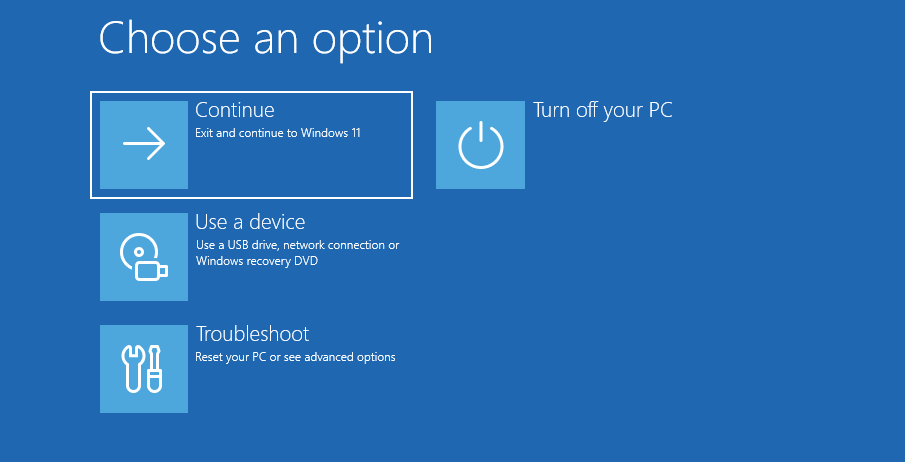
From here, administrators and end users can access Windows recovery options including:
- Continue to Windows
- Startup Repair
- Reset this PC
- System Restore
- Command Prompt
- Startup Settings (Safe Mode)
- Uninstall Updates
- UEFI Firmware Settings
- System Image Recovery
Although these tools appear as separate features, they’re all running inside the WinRE operating system rather than the installed copy of Windows.
Servicing winre.wim
One advantage of packaging WinRE as a WIM image is that it can be serviced offline using DISM, just like a standard Windows installation image. This allows administrators to apply Safe OS updates, inject drivers or make other supported modifications without rebuilding the entire operating system.
When WinRE is enabled, winre.wim resides on the hidden Recovery partition. You can confirm its location by running:
reagentc /infoBecause the Recovery partition is protected, Microsoft recommends servicing the image using the following workflow:
- Disable WinRE using reagentc /disable
- Windows moves winre.wim to C:\Windows\System32\Recovery\winre.wim or C:\Recovery\
- Mount and service the image with DISM
- Re-enable WinRE using reagentc /enable
reagentc /disable
C:\Windows\System32\Recovery\winre.wim
reagentc /enable
Windows then copies the updated image back to the Recovery partition, updates the recovery configuration and protects it from further modification.
Note: Depending on the Windows version and servicing scenario, Windows may copy or register the updated image during the disable/enable process. The supported workflow remains the same: disable WinRE, service C:\Windows\System32\Recovery\winre.wim, then re-enable WinRE.
Recovery Partition Size
Although winre.wim is much smaller than the main Windows installation, it continues to grow as Microsoft adds new recovery features, drivers and security updates.
As a general guideline:
- winre.wim is typically 600–900 MB on Windows 11.
- Microsoft recommends a Recovery partition of at least 1 GB.
- Many OEMs allocate 1.5 GB or more to provide room for future servicing.
Leaving sufficient free space is important because Windows requires working space when applying Safe OS updates. If the Recovery partition is too small, Windows Update may be unable to service WinRE successfully.
Recovery Features
Windows Recovery Environment (WinRE) includes a suite of recovery tools designed to diagnose, repair and restore Windows without starting the installed operating system. Because these tools run from WinRE, they can work on the Windows installation while it remains offline, allowing repairs that wouldn’t be possible during a normal boot.
Startup Repair (Quick machine recovery)
Startup Repair automatically diagnoses and attempts to resolve problems that prevent Windows from booting successfully.
It can repair issues such as:
- Missing or damaged boot files
- Corrupted Boot Configuration Data (BCD)
- Invalid boot configuration
- Certain disk-related startup problems
If Windows repeatedly fails to boot, Startup Repair is often launched automatically.
Reset this PC (Push Button Reset)
Reset this PC, also known as Push Button Reset (PBR), reinstalls Windows while giving users the choice to either keep their personal files or remove everything.
Unlike traditional factory recovery solutions, Windows doesn’t restore a captured system image. Instead, it rebuilds the operating system using the local Windows Component Store (WinSxS) or, if selected, downloads a fresh copy of Windows from Microsoft using Cloud Download.
Available reset options include:
- Keep my files – Reinstalls Windows while preserving user data
- Remove everything – Performs a complete reinstall of Windows
- Cloud Download – Downloads fresh Windows installation files from Microsoft instead of using the local Component Store
For organisations using Microsoft Intune or other endpoint management platforms, these recovery options can also be initiated remotely.
System Restore
If System Restore has been enabled, WinRE can restore Windows to a previously created restore point.
This allows administrators to roll back:
- Windows Updates
- Driver installations
- Registry changes
- Application installations
Because personal files aren’t affected, System Restore is often the quickest way to reverse a recent configuration problem.
Uninstall Updates
Occasionally, a Windows quality or feature update can prevent a system from starting correctly.
WinRE provides the ability to remove either:
- The latest Quality Update (LCU)
- The latest Feature Update
This provides a straightforward recovery path when a recently installed update introduces boot issues.
Command Prompt
For IT professionals, Command Prompt is one of the most powerful tools available within WinRE.
Because Windows remains offline, administrators can perform operations that would normally be blocked by running system files.
Common recovery tasks include:
- Running DISM against the offline Windows image
- Running System File Checker (SFC)
- Repairing Boot Configuration Data (BCD)
- Using Bootrec to repair boot records
- Recovering or copying files
- Editing the offline registry
- Managing BitLocker volumes
- Running PowerShell (where supported)
Startup Settings
Startup Settings provides alternative boot options that can help diagnose software or driver issues.
These include:
- Safe Mode
- Safe Mode with Networking
- Safe Mode with Command Prompt
- Disable Driver Signature Enforcement
- Disable Automatic Restart after System Failure
These options are particularly useful when faulty drivers or third-party software prevent Windows from starting normally.
UEFI Firmware Settings
On supported hardware, WinRE provides direct access to the system firmware without requiring manufacturer-specific function keys during startup.
This allows administrators to:
- Change boot order
- Configure Secure Boot
- Enable or disable TPM
- Modify other firmware settings
System Image Recovery
If a complete system image has been created using Windows Backup or another compatible imaging solution, WinRE can restore the device to that captured state.
Unlike Push Button Reset, which rebuilds Windows, System Image Recovery restores the entire disk exactly as it existed when the backup was taken, including installed applications, settings and user data.
BitLocker Recovery
WinRE fully supports BitLocker-protected drives.
If a system drive is encrypted, WinRE prompts for the BitLocker Recovery Key before allowing recovery operations to continue. Once unlocked, administrators can repair Windows or recover important files without first booting into the installed operating system.
OEM Recovery Tools
Many OEMs customise winre.wim by adding their own recovery utilities.
These commonly include:
- Hardware diagnostics
- BIOS or firmware update tools
- Factory restore options
- Secure erase utilities
- Vendor-specific troubleshooting applications
Because these tools are integrated into the WinRE image, they’re available whenever the recovery environment starts.
How Push Button Reset Works
Although users interact with Reset this PC, the entire recovery process is managed by WinRE.
When a reset is requested, Windows doesn’t begin reinstalling itself immediately. Instead, it restarts into WinRE, which takes control of the recovery process while the installed operating system remains offline.
A typical Push Button Reset follows these stages:
- Windows schedules the reset operation
- The system restarts into WinRE
- WinRE prepares the recovery environment
- Windows rebuilds the operating system using the local WinSxS Component Store or Cloud Download
- Compatible hardware drivers are migrated from the existing installation
- User files are preserved or removed, depending on the selected reset option
- Windows restarts into the Out of Box Experience (OOBE) or the existing user profile
One of the biggest misconceptions about Push Button Reset is that Windows is restored from winre.wim. This isn’t the case.
The winre.wim image contains the recovery operating system that coordinates the process, it isn’t the source of the new Windows installation. Instead, Windows rebuilds itself from the trusted components stored in the WinSxS Component Store, while migrating compatible drivers from the existing installation to ensure hardware continues to function after the reset.
If the local Component Store is damaged or unavailable, Cloud Download can retrieve a fresh copy of Windows directly from Microsoft before the rebuild begins.
Because Push Button Reset relies on both WinRE and the Component Store, problems in either can prevent recovery from completing successfully. A custom image may deploy perfectly yet still fail during Reset this PC if the Recovery partition, WinRE configuration or Component Store hasn’t been correctly maintained and validated.
Why WinRE Breaks
Windows Recovery Environment (WinRE) is designed to be resilient, but like any part of the operating system, it depends on several components working together. A problem with the recovery image, Recovery partition or Windows Component Store can prevent recovery features such as Startup Repair and Reset this PC from working correctly.
The challenge is that these issues often go unnoticed. A Windows image may deploy successfully, pass user acceptance testing and run without issue for months, only to fail when recovery is needed.
Common causes include:
WinRE Is Disabled
If WinRE has been disabled, Windows can no longer start the recovery environment.
You can check its status by running:
reagentc /infoIf the output reports:

Windows RE status: Disabled
Recovery features such as Reset this PC, Startup Repair and Advanced Startup will no longer function until WinRE is re-enabled.
Missing or Damaged Recovery Partition
Windows relies on the Recovery partition to locate winre.wim.
If the partition has been deleted, resized incorrectly or damaged, perhaps following disk cloning, storage migration or third-party partitioning. Windows may no longer be able to boot into WinRE.
Corrupted winre.wim
The recovery image itself can become corrupted or be removed accidentally.
Typical causes include:
- Failed servicing
- Interrupted Windows Updates
- Unsupported modifications
- Disk corruption
- Manual changes to recovery files
Without a valid winre.wim, Windows has no recovery operating system to start.
Incorrect Recovery Configuration
Windows doesn’t search the disk for winre.wim it follows the recovery configuration managed by ReAgent.
If that configuration points to the wrong location, WinRE may appear to be missing even though the recovery image still exists.
Running:
reagentc /infois usually the quickest way to confirm that Windows knows where the recovery environment is located.
Recovery Partition Too Small
The Recovery partition must contain enough free space for Microsoft to apply Safe OS updates.
As winre.wim has grown with each Windows release, older installations with undersized Recovery partitions have increasingly encountered servicing failures.
For this reason, Microsoft now recommends allocating at least 1 GB, while many OEMs reserve 1.5 GB or more for future growth.
Component Store Corruption
Although WinRE manages the recovery process, Push Button Reset rebuilds Windows using the WinSxS Component Store.
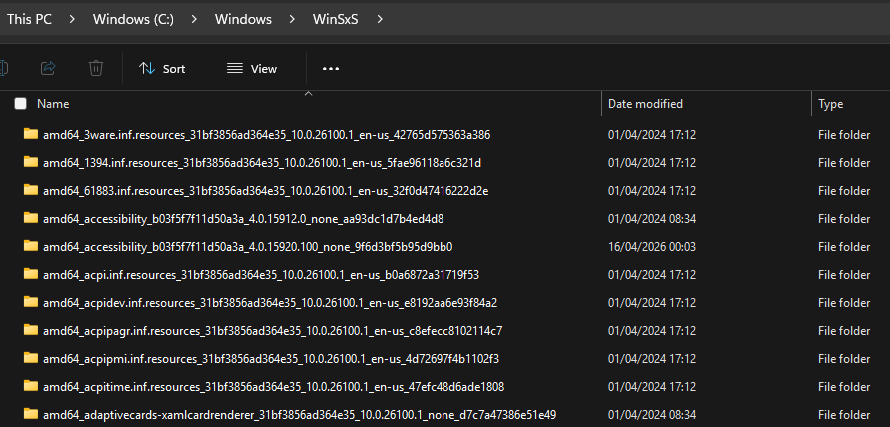
If the Component Store is damaged, recovery may fail even when WinRE itself is functioning correctly.
This is why maintaining Component Store health is just as important as maintaining WinRE.
Unsupported Image Customisation
Many recovery failures are self-inflicted.
Aggressive debloating, removing protected Windows components, unsupported servicing methods or incorrect Sysprep workflows can all leave Windows unable to complete a successful Push Button Reset.
A system may appear perfectly healthy during normal operation while its recovery environment has already been compromised.
Validating WinRE
Checking that Windows boots successfully isn’t enough to prove that a deployment is production-ready.
A robust validation process should confirm that both deployment and recovery work as expected.
As a minimum, every production image should be validated by:
- Confirming WinRE is enabled.
reagentc /info- Verifying Windows reports a valid Recovery location.
- Confirming the Recovery partition exists and has sufficient free space.
- Booting into WinRE using Advanced Startup or:
shutdown /r /o /t 0- Verifying that recovery tools load correctly.
- Completing a full Push Button Reset using both:
- Keep my files
- Remove everything
Simply checking the configuration isn’t enough, the only definitive test is to boot into WinRE and complete a successful recovery.
Best Practices
Following a few simple practices will significantly improve the reliability of Windows Recovery Environment and reduce support issues after deployment.
- Keep WinRE enabled. Disable it only while servicing winre.wim, then re-enable it immediately
- Service WinRE alongside Windows. Apply Safe OS updates whenever you service your Windows images to keep both environments aligned
- Allocate sufficient Recovery partition space. At least 1 GB is recommended, while 1.5 GB or more provides room for future updates
- Protect the Component Store. Avoid unsupported image modifications, aggressive debloating or manually removing Windows components
- Use supported servicing methods. Service C:\Windows\System32\Recovery\winre.wim after running reagentc /disable, then re-enable WinRE once servicing is complete
- Test recovery before deployment. Validate that WinRE loads correctly and Push Button Reset completes successfully before releasing an image into production
Final Thoughts
Windows Recovery Environment is far more than the blue recovery screen that appears when Windows encounters a problem. It’s a dedicated recovery operating system that enables Windows to diagnose, repair and rebuild installations that can no longer boot normally.
For IT administrators and deployment engineers, understanding how WinRE works is only part of the equation. Equally important is ensuring that it is serviced, configured and validated alongside every Windows image you deploy.
A Windows image isn’t truly production-ready because it installs successfully, it’s production-ready because it can also recover successfully.
Key Takeaway
A successful deployment proves Windows can be installed. A successful recovery proves Windows can be supported.


Leave a Reply