
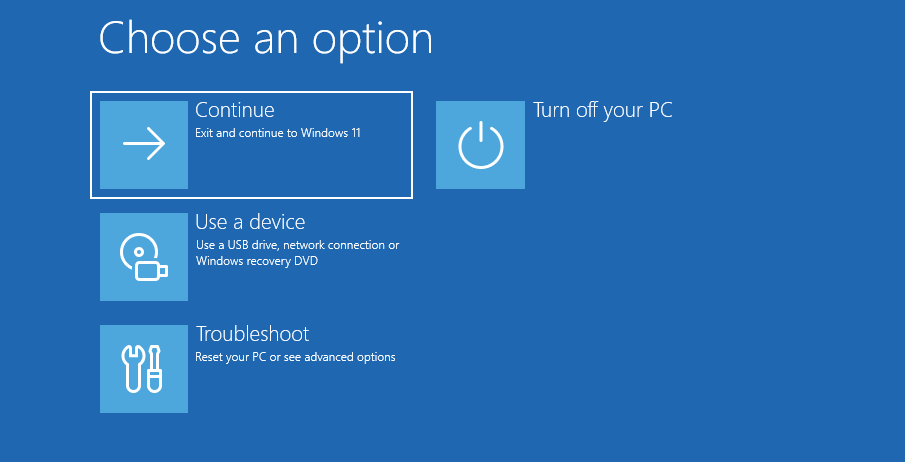
Sometimes Windows won’t boot, sometimes an update causes problems, and sometimes the operating system becomes so damaged that a complete rebuild is the quickest solution.
Modern versions of Windows include several recovery tools, but because their names are similar it’s often difficult to know which one to choose.
This guide explains each recovery option, what it actually does behind the scenes, and when you should use it. Where appropriate, we’ll also link to more detailed engineering articles that explore how these technologies work.
Windows Recovery Options at a Glance
Windows provides several recovery options, each intended for a different scenario. The table below summarises what each tool does, whether it requires an internet connection, and when you should use it.
| Recovery option | Repairs boot issues | Repairs Windows | Keeps personal files | Requires Internet | Typical use |
|---|---|---|---|---|---|
| Quick machine recovery (Startup Repair) | ✅ | Limited | ✅ | No | Windows won’t start |
| System Restore | ❌ | ✅ | ✅ | No | Bad driver or update |
| Point-in-time Restore | ❌ | ✅ | ✅ | Sometimes | Roll back recent changes |
| Reset this PC (PBR) | ✅ | ✅ | Optional | No | Local Reinstall Windows |
| Cloud Rebuild (Preview) | ✅ | ✅ | Optional | Yes | Online Reinstall Windows |
| System Image Recovery | ✅ | Complete restore | ❌ | No | Return PC to exact backup |
Quick machine recovery (Startup Repair)
Best for: Windows refuses to boot.

Quick Machine Recovery (QMR) builds on the traditional Startup Repair experience by using the Windows Recovery Environment (WinRE) to automatically detect and repair common boot problems. In addition to fixing issues such as damaged Boot Configuration Data (BCD), missing boot files and startup configuration errors, Quick Machine Recovery can connect to Microsoft’s cloud recovery service through Windows Update to download and apply remediations for known, widespread boot failures. If no cloud-based fix is available, Windows falls back to the traditional recovery options within WinRE.
It doesn’t reinstall Windows or touch your personal files.
When to use Startup Repair
- Endless boot loops
- Preparing Automatic Repair Error
- Missing boot files
- Damaged BCD (Boot Configuration Data)
System Restore
Best for: A recent driver, Windows Update or software installation caused problems.
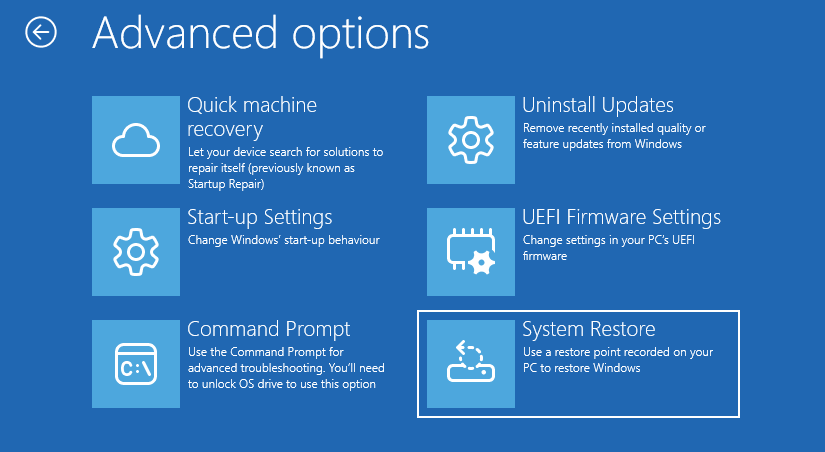
System Restore allows you to roll Windows back to a previously saved restore point without affecting your personal files. It works by restoring critical system components, including the Windows Registry, system files, installed drivers and applications, effectively undoing recent system changes that may have caused instability or prevented Windows from functioning correctly. Documents, photos and other personal files are not modified, making System Restore a safe first step when troubleshooting software-related issues before considering more drastic recovery options like Reset this PC.
What System Restore restores
- Windows Registry
- System files
- Device drivers
- Installed applications
What System Restore does not restore
- Documents
- Photos
- Personal files
- Email and other user data
Point-in-time Restore (New)
Best for: Rolling a PC back to a recent working state after software, driver or update issues.

Point-in-time Restore is Microsoft’s next-generation recovery feature for Windows 11. It is designed to make recovery faster and more reliable by restoring a PC to a previously captured system state, helping users recover from recent problems without performing a full Windows reinstall.
Unlike traditional System Restore, which primarily restores the Windows Registry, system files and drivers, Point-in-time Restore captures a more complete snapshot of the system, providing a broader rollback capability.
At the time of writing, Point-in-time Restore is rolling out with Windows 11 26H2 and newer releases, with Microsoft expected to expand and refine the feature over time.
Reset this PC (Push Button Reset)
Best for: Reinstalling Windows while optionally keeping your personal files.

Reset this PC, also known as Push Button Reset (PBR), reinstalls Windows using the Windows Recovery Environment (WinRE). You can choose to keep your personal files or remove everything for a completely fresh start. Installed applications and most system changes are removed, allowing Windows to rebuild itself while recovering from serious software corruption, failed updates or persistent stability issues.
Unlike a traditional reinstall from installation media, Push Button Reset uses Windows’ built-in recovery mechanisms to rebuild the operating system, making it one of the most powerful recovery tools available.
Cloud Rebuild (Preview)
Best for: Recovering a PC when the local Windows installation or recovery files are damaged.
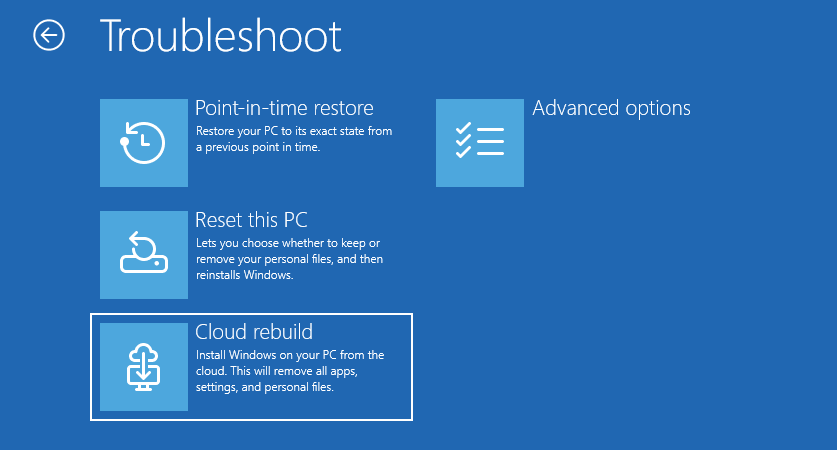
Cloud Rebuild is a new recovery feature currently in preview for Windows 11 and is expected to become available with version 26H2. Instead of rebuilding Windows using local recovery files, it downloads a fresh Windows image and the required device drivers directly from Windows Update. This allows a PC to be restored even if the existing installation or recovery environment has become corrupted, without the need for installation media or a custom recovery image.
Benefits of Cloud Rebuild
- Downloads a clean Windows image directly from Microsoft.
- Doesn’t rely on the integrity of the local recovery image or component store.
- Automatically installs compatible drivers from Windows Update.
- No USB installation media required.
Considerations
- Requires a reliable internet connection.
- Downloads several gigabytes of data.
- Performs a full Windows reinstall, removing local files, applications and settings.
- As the feature is currently in preview, functionality and availability may change before general release.
System Image Recovery
Best for: Restoring a PC to exactly the same state as when it was backed up.
Unlike Reset this PC, which builds a fresh Windows installation, System Image Recovery restores an entire computer from a previously created disk image. This includes Windows, installed applications, settings, drivers and personal files, returning the PC to exactly the state it was in when the backup was taken.
System images can be created using Windows Backup or third-party imaging software such as Macrium Reflect, and are commonly used by businesses to quickly recover workstations after hardware failure or major system corruption.
Which Recovery Option Should You Choose?
Not every recovery tool is designed to solve the same problem. Use the guide below to help choose the most appropriate recovery option for your situation.
| If… | Recommended recovery option |
|---|---|
| Windows won’t boot | Start with Startup Repair. If the problem persists, consider Reset this PC or Cloud Rebuild. |
| Windows boots but has become unstable after a driver, application or update | Use System Restore or Point-in-time Restore (if available) to roll the system back. |
| Windows is corrupted or system files are damaged | Run DISM followed by SFC to repair the Windows installation. |
| You want a completely fresh Windows installation | Choose Reset this PC or Cloud Rebuild for a clean reinstall. |
| You need to restore the PC exactly as it was | Restore from a System Image Backup. |
Have a question?
Frequently Asked Questions
What’s the difference between Reset this PC and Cloud Rebuild?
Both options reinstall Windows, but Reset this PC uses recovery files already stored on your computer, whereas Cloud Rebuild downloads a fresh Windows image directly from Microsoft. Cloud Rebuild is useful if the local recovery files have become corrupted or are unavailable.
Will Reset this PC delete my files?
Not necessarily. Reset this PC lets you choose between Keep my files, which preserves your personal data while reinstalling Windows, or Remove everything, which erases all files, applications and settings for a completely fresh installation.
Is System Restore still available in Windows 11?
Yes. System Restore is still included in Windows 11, although it may be disabled by default on some devices. It remains useful for undoing recent driver, software or Windows Update changes without affecting your personal files.
Can Startup Repair fix every boot problem?
No. Startup Repair can automatically resolve many common boot issues, such as damaged boot files or configuration problems, but it cannot repair every issue. If Startup Repair is unsuccessful, you may need to use Reset this PC, Cloud Rebuild, or advanced recovery tools such as Bootrec.
What’s the safest Windows recovery option?
The safest option depends on the problem. For recent software or driver issues, System Restore or Point-in-time Restore are the least disruptive because they don’t affect your personal files. More serious problems may require Reset this PC or Cloud Rebuild.
Which recovery method should businesses use?
There isn’t a single recovery method that suits every organisation. Most businesses use a combination of System Restore, Reset this PC, enterprise imaging solutions and backup software. Maintaining current system images and tested recovery procedures helps minimise downtime and ensures devices can be restored quickly when problems occur.
Final Thoughts
Windows now includes a wide range of recovery technologies, each designed to solve a different type of problem. Whether you’re recovering from a failed update, repairing corrupted system files or performing a complete reinstall, choosing the right recovery option can save time, reduce downtime and avoid unnecessary reinstalls.
Understanding how these tools work and when to use them is valuable for both home users and IT professionals. As Microsoft continues to evolve Windows recovery with features such as Point-in-time Restore and Cloud Rebuild, knowing the strengths and limitations of each recovery method will become even more important.

Leave a Reply